Best Tablets for Drawing Beginners (Love at First Spec)
The first ten minutes with a pen tablet feel a bit like signing your name while watching someone else's hand. Your pen moves on a blank black slab, the line appears on a monitor two feet away, and your brain refuses to connect the two. Circles come out as eggs. Straight lines drift. Most people blame the tablet at this point, and most of them are wrong.
What separates a good first tablet from a frustrating one has little to do with the giant pressure numbers printed on the box. It comes down to whether the drawing area suits your screen, whether the driver installs cleanly, whether the shortcut keys sit where your free hand rests, and whether the pen still feels right after a month of evening practice. Over several weeks I rotated five screenless tablets through my evening sketch sessions, swapping one for the next every few days, and my own ranking changed twice before it settled.
Short on time? Start with these two:
We may earn a small commission if you buy via our links - it helps keep gagadget.com running.
Table of Contents:
- How to Pick Your First Drawing Tablet
- Five Starter Tablets Worth Your Desk Space
- Beginner Drawing Tablet Comparison
- XPPen Deco 01 V3
- Wacom Intuos Small CTL-4100
- HUION Inspiroy H640P
- GAOMON S620
- UGEE M708 V3
- First-Tablet Questions People Ask Me Most
How to Pick Your First Drawing Tablet: Buying Guide
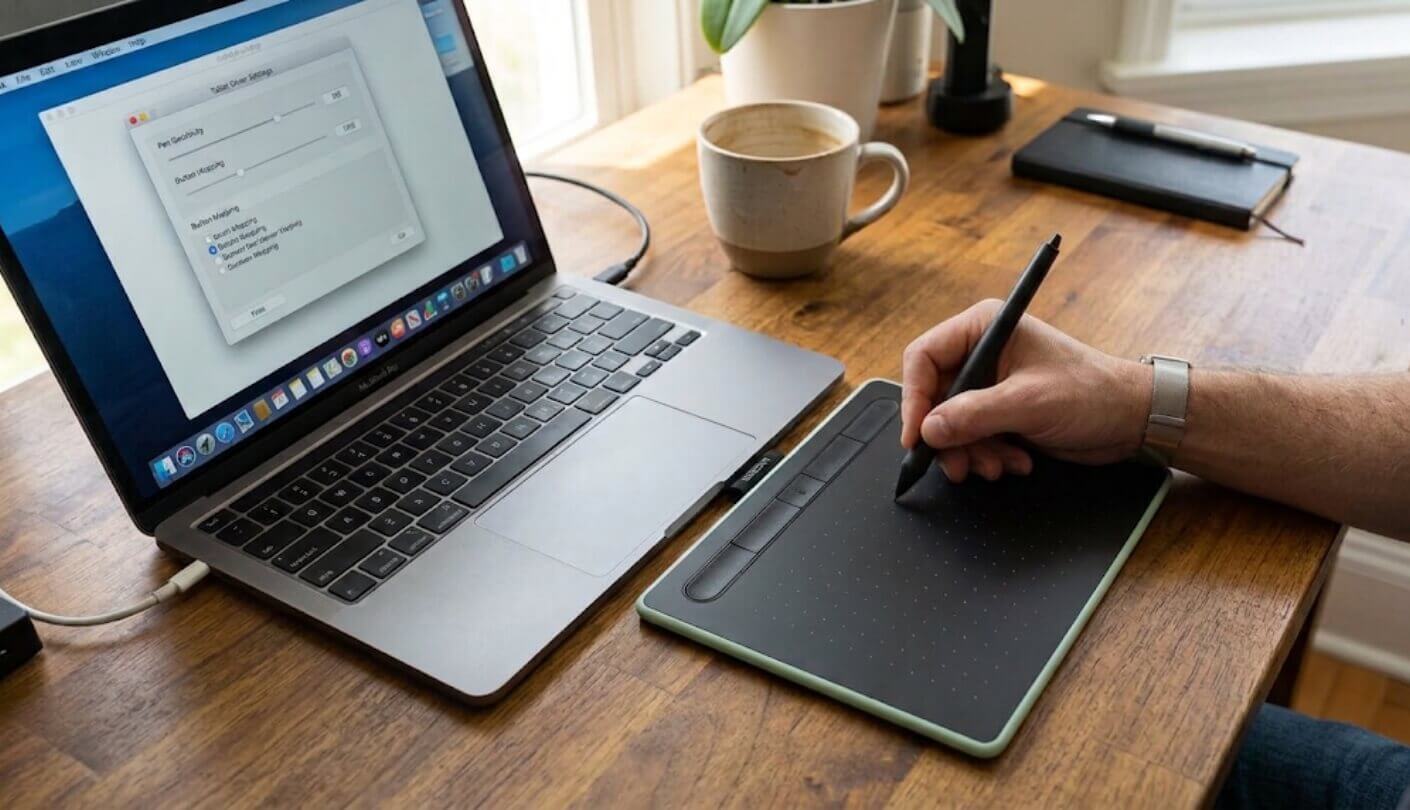
Screenless tablets look almost identical in product photos: a dark rectangle, a pen, a row of buttons. The differences only show up once you sit down and draw. Each subsection below follows the order in which a beginner usually hits a problem, from the size question on day one to the worn nib that shows up a couple of months later.
Match the Drawing Area to the Screen You Own
A pen tablet maps its whole surface onto your whole monitor. Move the pen from the left edge to the right edge of the tablet, and the cursor crosses the entire screen. On a small tablet paired with a large monitor, that means tiny hand movements produce big jumps on screen, and you end up drawing from the wrist. A large tablet on a laptop does the opposite, asking for long arm strokes to cross a 14-inch display.
A small tablet trains the wrist and a large one trains the elbow. Switching between them later costs a few days of wobbly lines.
As a rough pairing, a surface around six inches wide sits comfortably next to a laptop, and a ten-inch surface suits a 24 or 27-inch monitor. Desk space matters just as much, since a bigger tablet needs room beside the keyboard. I keep a six-inch tablet in my laptop bag and a ten-inch one on the desk at home, and the desk one gets far more use simply because my arm never feels cramped on it.
Pressure Numbers, Tilt and What Your Hand Notices
Pressure levels describe how many steps the pen can report between the lightest touch and a hard press. Every graphics tablet here reports at least 4,096 of those steps, and the newest XPPen claims 16,384. Past a few thousand levels, the limit stops being the hardware and becomes your hand, plus the way your drawing app maps pressure to brush size. What beginners feel far more is how light a touch the pen needs before it starts drawing at all, a figure almost no brand prints.
Tilt is a different story. A pen that reports its angle lets pencil and charcoal brushes widen as you lean the stylus, much like shading with the side of a graphite stick. For clean inking and flat colors, tilt barely matters. I sketch with a tilted pencil brush most evenings, so I would pay a little extra for it, though someone drawing comics with crisp line art could skip it without missing much.
The First Hour Is All About Drivers
Every tablet here needs its maker's driver on Windows and macOS, and that driver decides whether pressure works, whether the keys do anything, and whether the cursor lands where the pen points. Download it from the brand's own site and skip any disc or third-party mirror. On Windows, a setting called Windows Ink sometimes needs switching on or off depending on the app you draw in, and the driver panel is where that lives.
Remove every old tablet driver before you plug in a new tablet. Two brands fighting over the same pen input cause most of the lag people blame on hardware.
Chromebooks and Android phones mostly skip the desktop driver but bring limits of their own. Shortcut keys often stop working, and phone modes shrink the usable drawing area to match a tall, narrow screen. I tried the four Android-ready tablets with a phone for an afternoon, and it felt more like a neat trick than a daily setup, though for a student without a computer it can be the only option.
Shortcut Keys and Which Hand Draws
Beginners use maybe three shortcuts constantly: undo, brush size and eraser. Zoom and hand tool come next. Four programmable keys cover the basics, eight leave room for layers and color picking, and any of them can be remapped per app in the driver. Pen buttons add more, and the Wacom and GAOMON pens each carry two of them. Physical keys beat keyboard shortcuts for one simple reason. Your free hand stays in one place, and you stop hunting for Ctrl and Z with your eyes off the drawing.
Left-handed artists need to check where those keys sit. Side-mounted keys land under the drawing hand once you rotate the tablet, which is why most drivers offer a 180-degree flip. A tablet with keys along the top edge, as on the Wacom and the GAOMON, sidesteps the problem entirely. I draw right-handed, so I tested the flip by forcing myself to sketch left-handed for an evening, and the reach across to rotated side keys got old within the first hour.
Nibs, Texture and the Costs Nobody Lists
Pen nibs are plastic, and they wear down against the tablet's surface. A worn nib feels scratchy, catches on strokes and eventually scuffs the drawing area. How fast that happens comes down to how hard you press and to the surface texture, since a grainy, paper-like finish grips the nib and slowly sands it away. Spares cost little, but running out at the wrong moment ruins a practice session.
A textured surface feels closer to paper and eats nibs faster. Keep a spare or two in the drawer before the first one flattens.
Other small costs add up quietly. A drawing glove stops your palm from dragging and smudging the surface, and some brands put one in the box. Older connectors such as Micro USB mean a specific cable you should not lose. Some tablets include a pen holder with spare nibs inside it. I lost my first stylus behind a radiator, so a stand or a pen loop is the extra I value most these days.
Five Starter Tablets Worth Your Desk Space
The order rests on four questions. Does the pen still feel predictable after a month? Does the driver install without a fight? Does the size fit an ordinary desk? What comes in the box? Price barely separates these five, since all of them sit at the bottom of the price range and drop further during sales, so it carried no weight. Every tablet also faced the same four warm-up drills: long straight lines, nested circles, a pressure ramp from hairline to full stroke, and a shaded sphere. Those four drills expose jitter, lag and a stiff pressure curve faster than any finished illustration would.
- 16,384 Pressure Levels
- 60-Degree Tilt
- 10 x 6.25 Inch Area
- Eight Express Keys
- Linux And ChromeOS Drivers
- Works With Chromebook
- Spare Nibs In Pen
- Steady Wacom Driver
- Top-Mounted ExpressKeys
- Android 6.0 Support
- Key Lock Switch
- Six Press Keys
- Holder With Spare Nibs
- Android Phone Mode
- 233 PPS Report Rate
- Top-Edge Express Keys
- 266 PPS Report Rate
- 6.5 x 4 Inch Area
- Two OTG Adapters
- Two Pen Buttons
- Glove And Pen Stand
- Eight Replacement Nibs
- Tilt Up To 60 Degrees
- Papery Textured Surface
- Linux Driver Support
Beginner Drawing Tablet Comparison
Every number in this table was checked against the maker's spec page or official store listing:
| Specification | XPPen Deco 01 V3 | Wacom Intuos Small | HUION H640P | GAOMON S620 | UGEE M708 V3 |
| Active Area | 10 x 6.25 in | 6.0 x 3.7 in | 6.3 x 3.9 in | 6.5 x 4 in | 10 x 6 in |
| Pressure Levels | 16,384 | 4,096 | 8,192 | 8,192 | 8,192 |
| Tilt Support | Yes, 60 degrees | No | No | No | Yes, 60 degrees |
| Pen Resolution | 5080 LPI | 2540 LPI | 5080 LPI | 5080 LPI | 5080 LPI |
| Tablet Keys | 8 express keys | 4 ExpressKeys on the top edge | 6 press keys with lock switch | 4 express keys on the top edge | 8 shortcut keys |
| Pen Type | Battery-free | Battery-free Wacom Pen 4K | Battery-free PW100 | Battery-free AP32 | Battery-free |
| Official OS Support | Windows, macOS, Linux, ChromeOS, Android 10+ | Windows, macOS, ChromeOS, Android 6.0+ | Windows, macOS, Android 6.0+ | Windows, macOS, Android 6.0+ | Windows, macOS 10.10 to 13, ChromeOS, Linux |
| Standout Extra | Highest pressure count plus tilt | Spare nibs stored inside the pen | Switch that disables the keys | Two OTG adapters for phones in the box | Papery textured drawing surface |
Two rows do most of the sorting. Active area splits the group into a pair of ten-inch tablets and three compact ones, and that choice should follow your screen size and desk. Tilt support then narrows things further, since only the XPPen and the UGEE report pen angle. The OS row is worth a slow read if you draw on a Chromebook or a recent Mac, because support differs more than the marketing suggests. Pressure levels look like the headline row, yet every figure in it is already enough for a beginner, so give it the least weight of all.
XPPen Deco 01 V3 Review
Editor's Choice
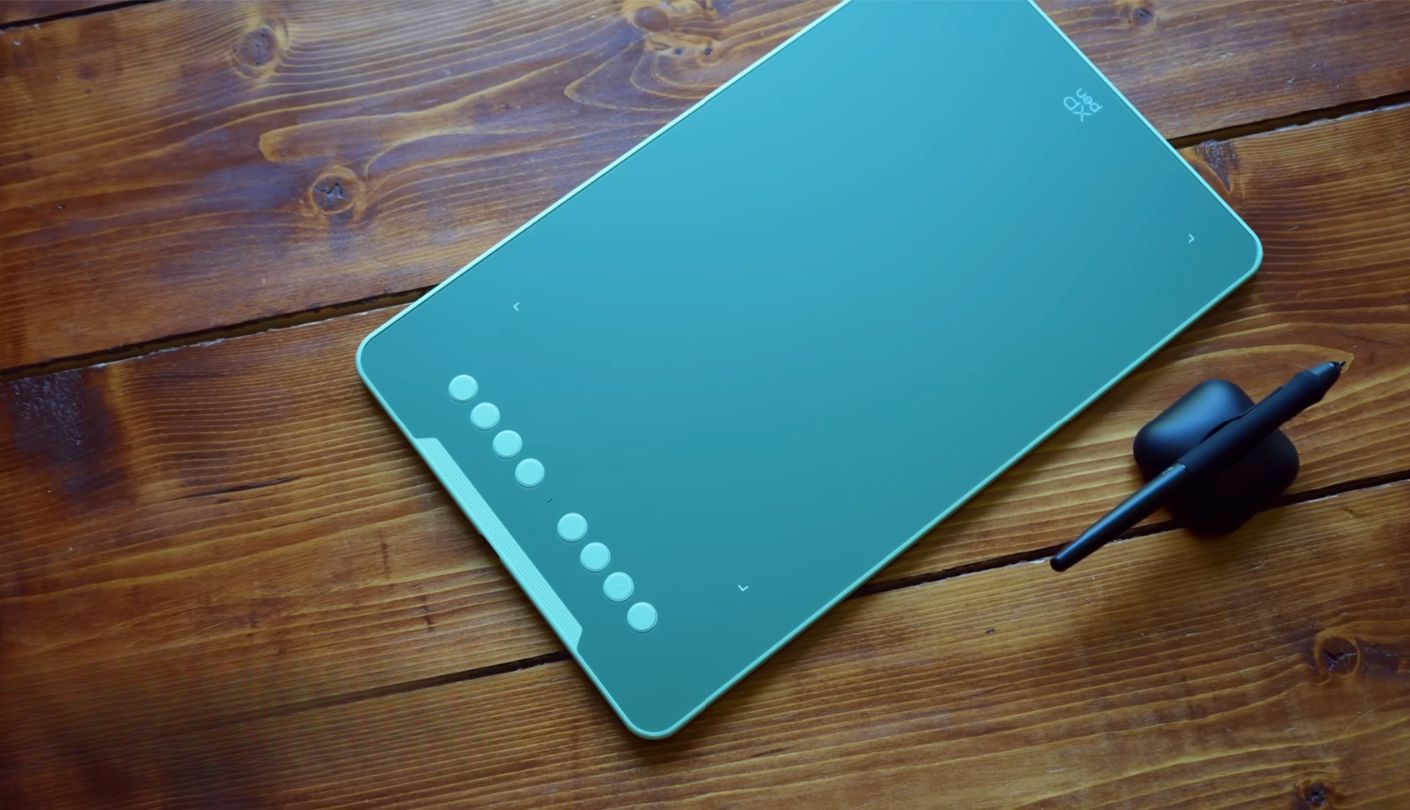
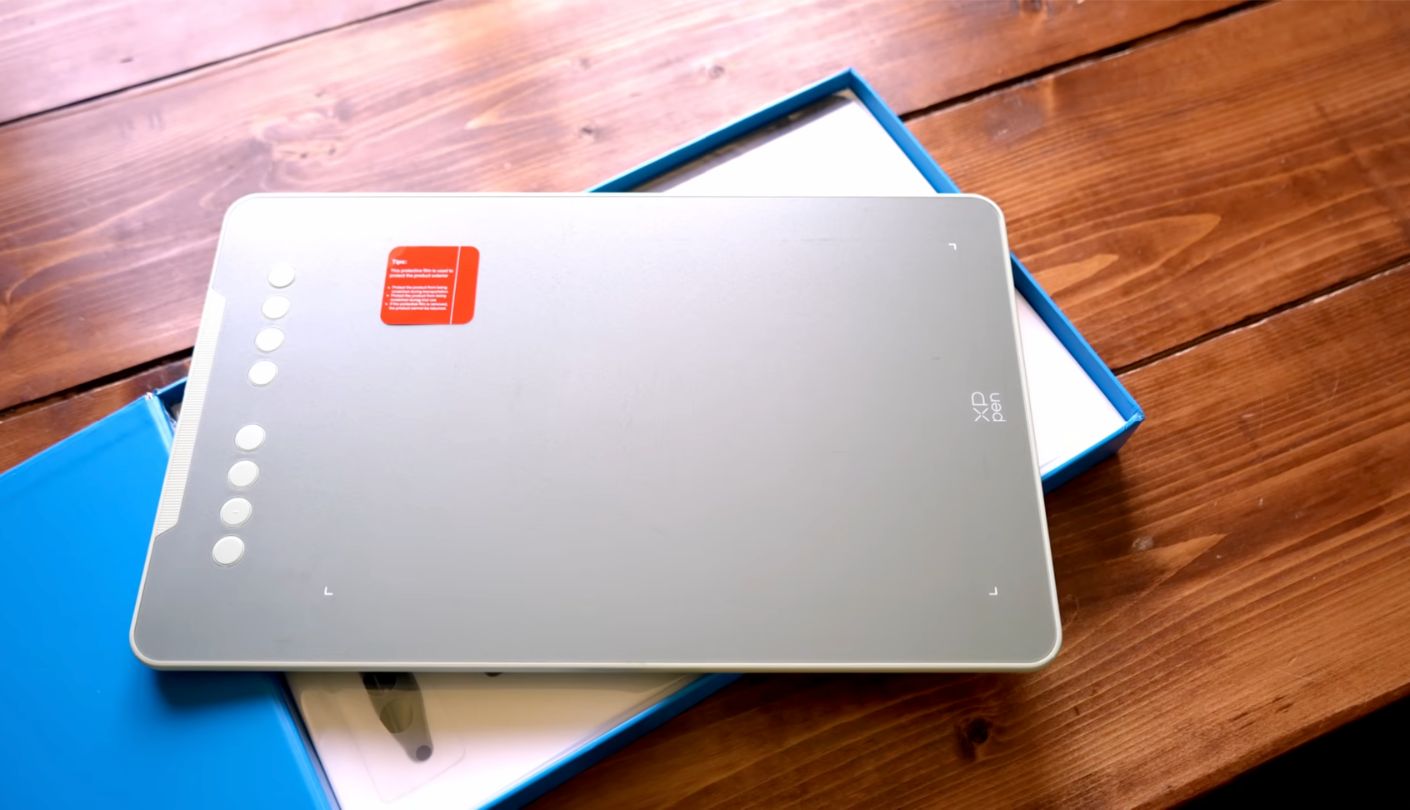
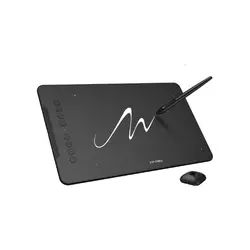
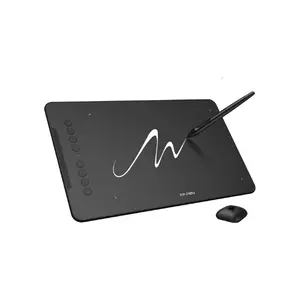
Most beginner tablets make you pick between a roomy surface and a modern pen. The XPPen Deco 01 V3 refuses that trade. It pairs a 10 x 6.25 inch drawing area with a battery-free stylus rated at 16,384 pressure levels and 60 degrees of tilt, which is a spec sheet you would expect further up the price ladder. One warning before ordering: the Deco 01 has gone through several generations, and the earlier V2 stops at 8,192 levels, so make sure the variant you select says V3.
On the surface, the pen glides smoothly with a hint of resistance. XPPen lists 5080 LPI resolution and a report rate of up to 220 per second, and in practice quick hatching strokes kept up with my hand without the stair-stepping that cheaper tablets sometimes show. Tilt is the feature that tipped Editor's Choice its way. Leaning the pen with a pencil brush in Krita widened the stroke the way the side of a graphite stick would, and that alone makes shading practice feel less like a technical exercise. The pressure ramp drill came out smooth from the lightest hairline to a heavy stroke, with no sudden jump in the middle, which is the behavior a beginner should look for before trusting any pressure figure.
Eight round express keys run down one side, spaced so a thumb can find them by touch, and XPPen says they were shaped with that blind use in mind. The body is just 8 mm thick, and it comes in black, green or pink. The driver lets you rotate the working area in 90-degree steps, so a left-handed artist can flip it and put the keys on the other side, even though that means stretching a little for the top ones.
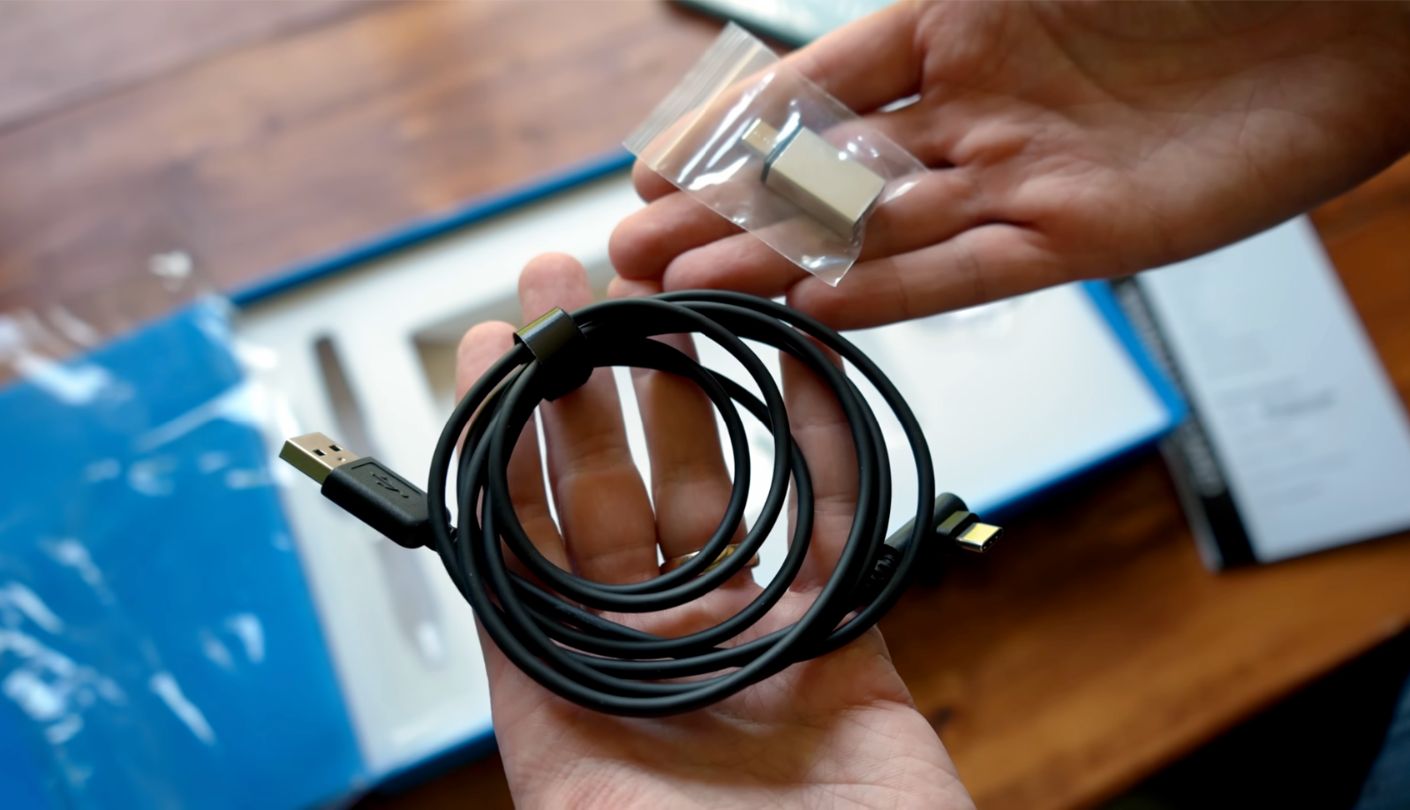
Compatibility is the widest here. XPPen supports Windows 7 and newer, macOS 10.12 and newer, Linux distributions, ChromeOS 88 or later and Android 10 or later through its XPPen tools app. That Linux support matters more than it sounds for students on school machines or anyone running Krita on an older laptop. The connection is a plain USB cable, so there is no Bluetooth to pair and no battery to charge, which also means one less thing to break. The Amazon listing puts a stylus stand, eight replacement nibs, a drawing glove and a USB-C adapter in the box, so nothing extra is needed on day one.
The trade-off is physical size. A ten-inch drawing area needs a desk wide enough to hold it beside the keyboard, and on a 13-inch laptop the mapping feels oversized until you shrink the active area in the driver. Neither issue cancels the main point. For a first tablet that will still feel capable a year into practice, I would pick this one over everything else in the lineup.
Pros:
- 16,384 Pressure Levels
- 60-Degree Tilt
- 10 x 6.25 Inch Area
- Eight Express Keys
- Linux And ChromeOS Drivers
Cons:
- Wired USB Only
- Needs Wide Desk
Summary: A tablet a beginner grows into and keeps using, thanks to tilt and a surface big enough for full-arm strokes. Map it to your whole screen at first, then shrink the active area in the driver if strokes start to feel too long.
Wacom Intuos Small CTL-4100 Review
Best Overall
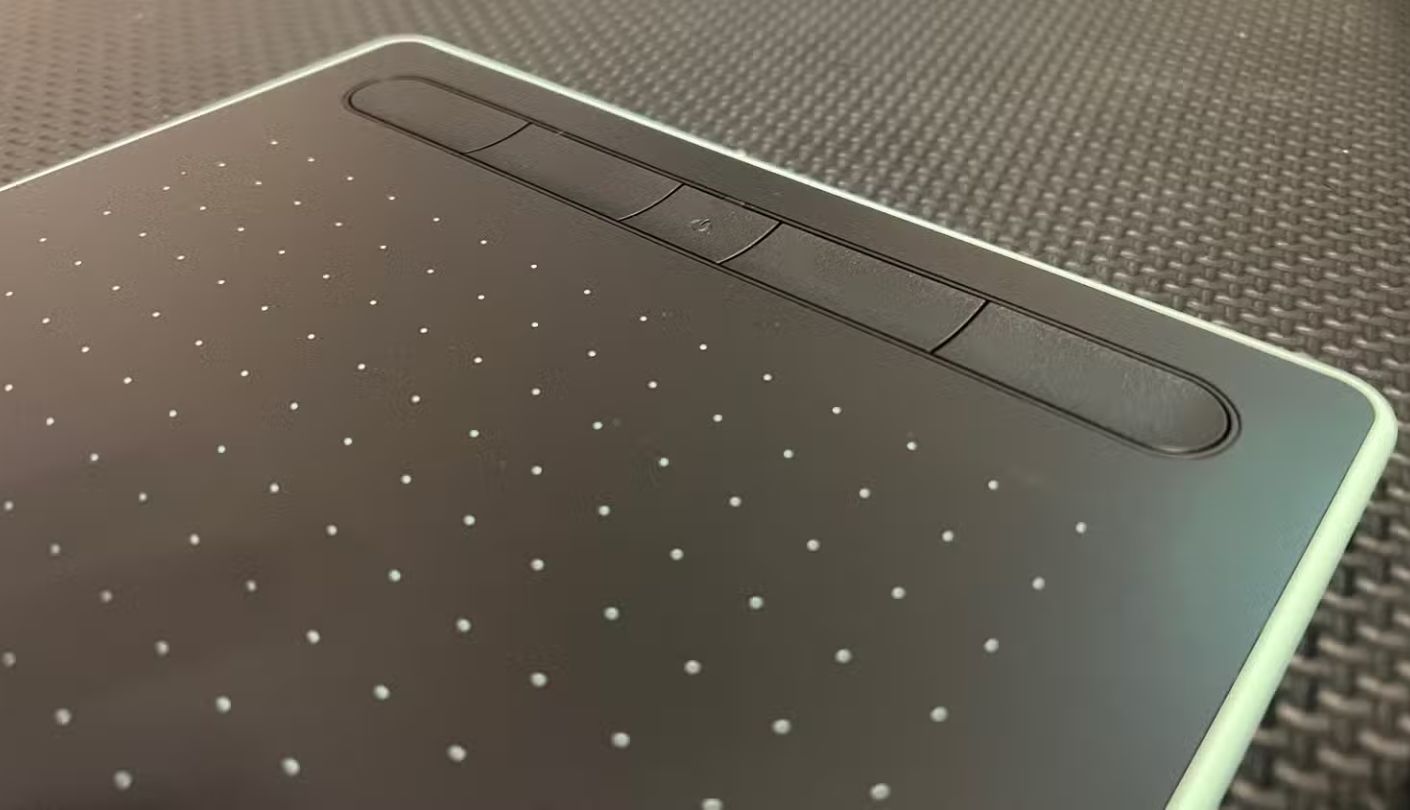
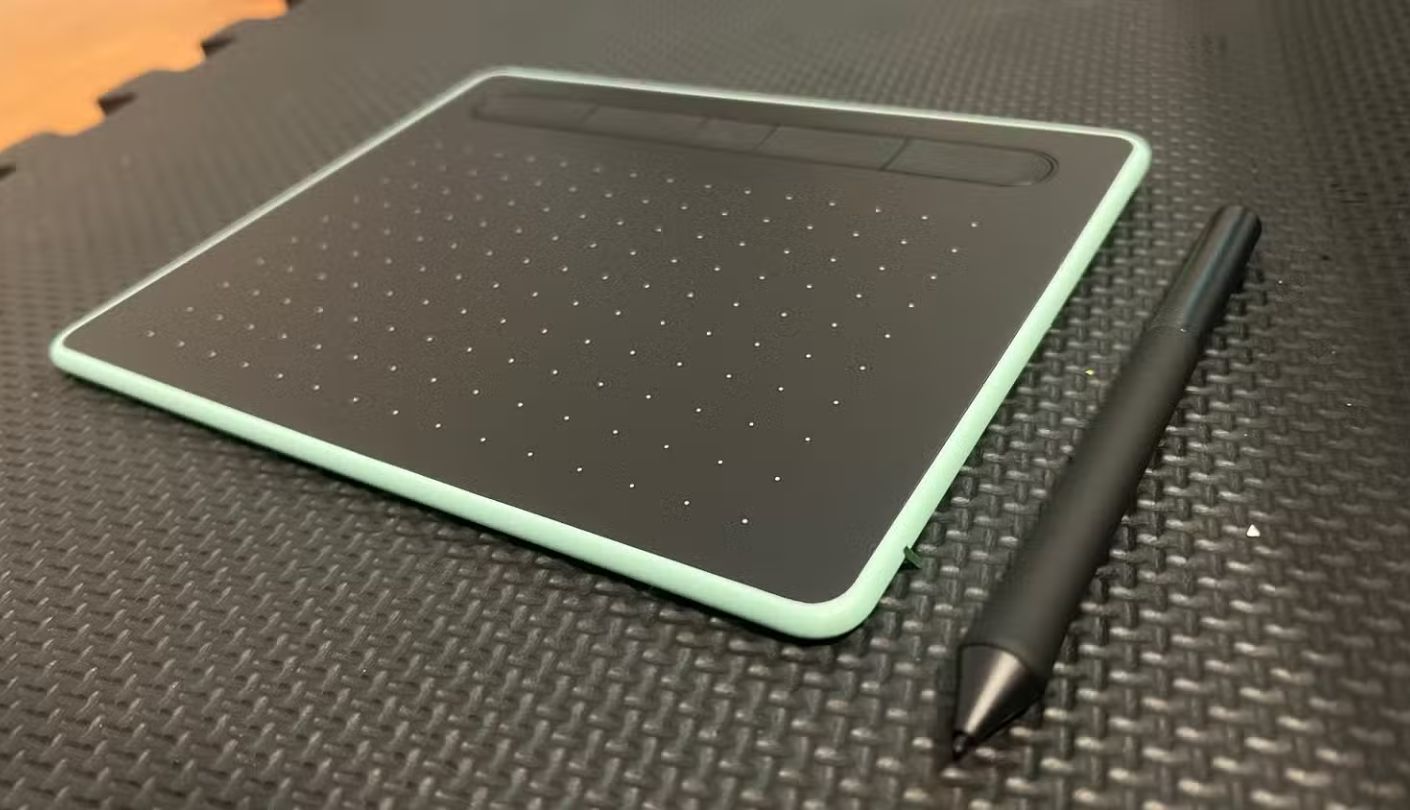
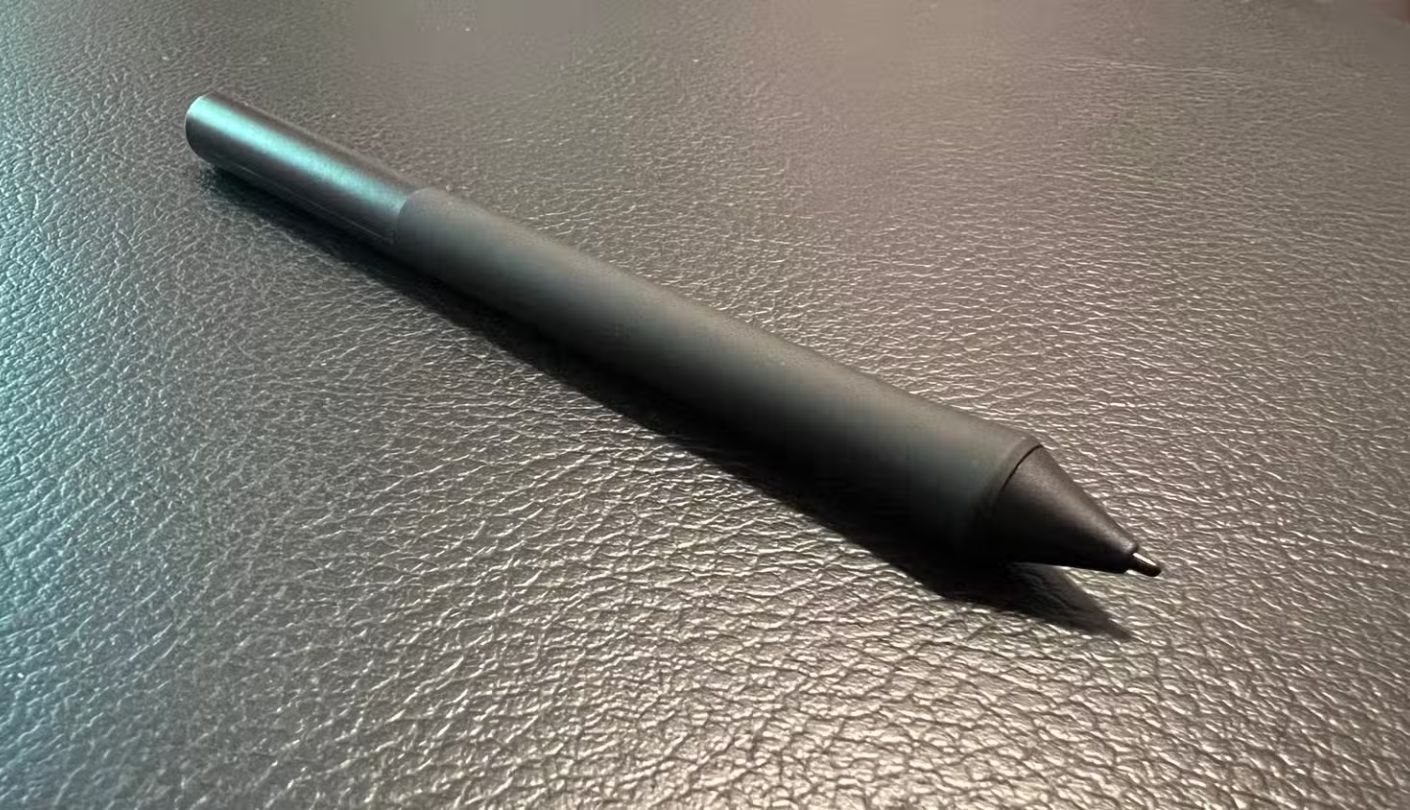
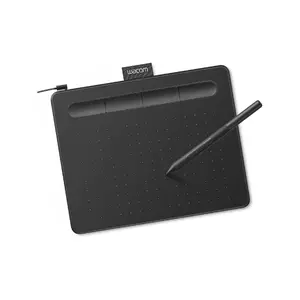
How does a tablet with a quarter of the XPPen's pressure levels and no tilt sensing end up as Best Overall? Wacom's Intuos Small CTL-4100 answers with things a spec sheet struggles to show: a driver that rarely misbehaves, a pen that feels the same on day one and day ninety, and official Works With Chromebook certification from Google. For a beginner who just wants to start drawing tonight and not troubleshoot, those qualities count for more than raw numbers.
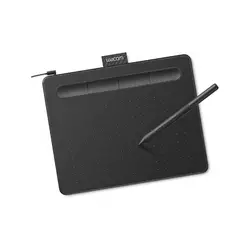
The drawing area measures 6.0 x 3.7 inches, the smallest in this lineup. The Wacom Pen 4K reports 4,096 pressure levels, needs no battery and carries two side buttons. Pen resolution is 2540 LPI, half the figure the other four list. In daily sketching I never saw that difference on screen, and the pen's light, steady feel made pressure control easy to learn. A nice touch hides inside the pen itself, which stores spare nibs in its barrel. The pen also starts drawing with a very light touch, so faint construction lines come easily, something that matters more in the first months than any headline figure.
Four ExpressKeys sit across the top of the tablet, so left and right-handed users reach them equally well. The whole tablet measures about 7.9 x 6.3 inches and 8.8 mm thick, small enough to slide into a laptop sleeve. It connects through a Micro-USB port on the tablet and a USB-A cable. A loop on the edge holds the pen, which saved me from a second radiator incident.
Platform support is where Wacom pulls ahead. The CTL-4100 carries Google's Works With Chromebook certification and also runs with Android phones and tablets on version 6.0 or later. One caveat for Chromebook households: the ExpressKeys do not work on ChromeOS, so undo lives on the keyboard there. Wacom has also tied creative software offers to registering the tablet over the years, so check the current listing to see what the bundle includes right now.
The weak points are honest ones. Six inches of width feels cramped on a 27-inch monitor, and anyone who loves shading with a tilted pencil will notice the missing angle data quickly. For a child's first tablet, a school Chromebook, or a small desk shared with homework, I have not found a safer bet among these five.
Pros:
- Works With Chromebook
- Spare Nibs In Pen
- Steady Wacom Driver
- Top-Mounted ExpressKeys
- Android 6.0 Support
Cons:
- Cramped 6-Inch Surface
- No Tilt Detection
Summary: The least stressful way into digital drawing. A tablet that moves between a Windows laptop, a Mac, a Chromebook and an Android phone without drama is worth more to a family than extra pressure levels.
HUION Inspiroy H640P Review
Lockable Keys
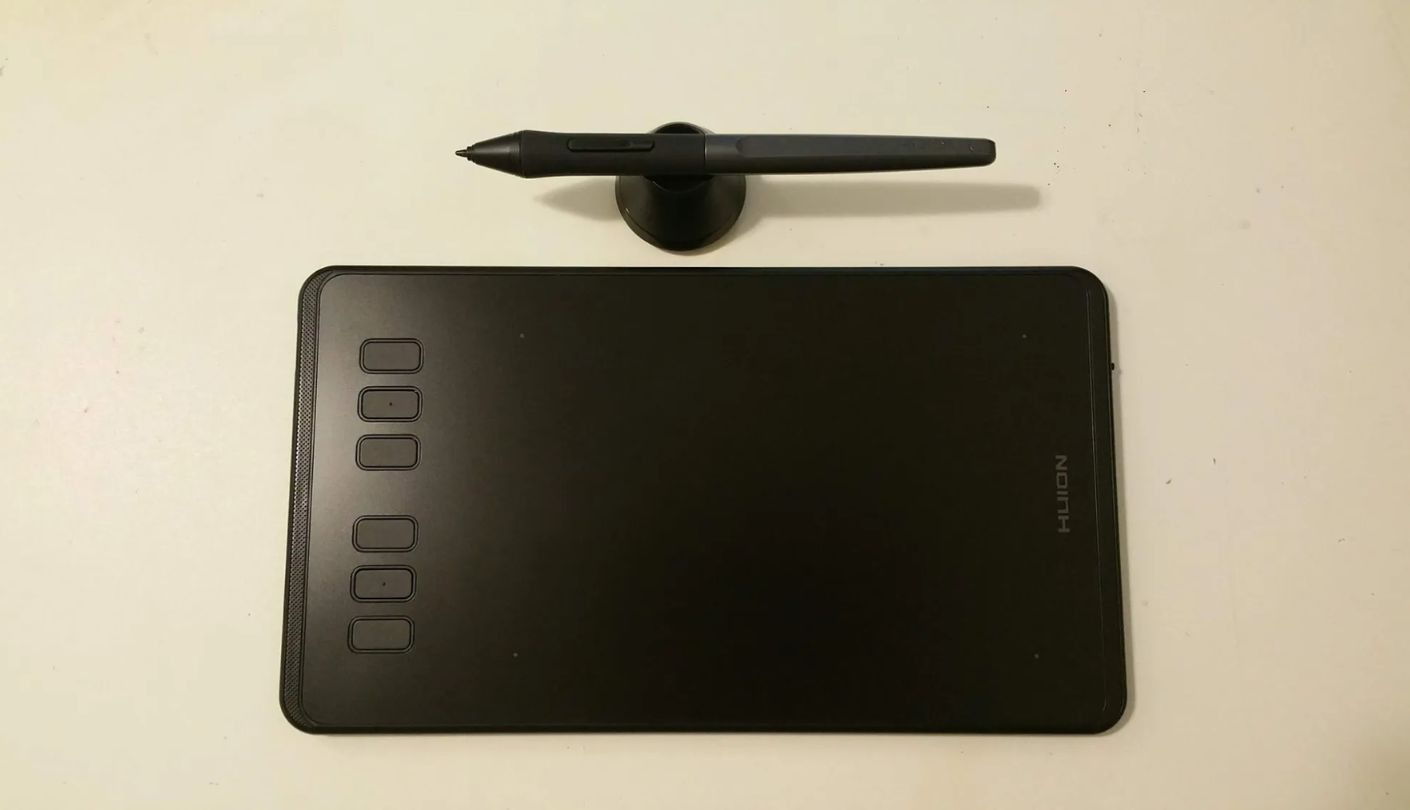
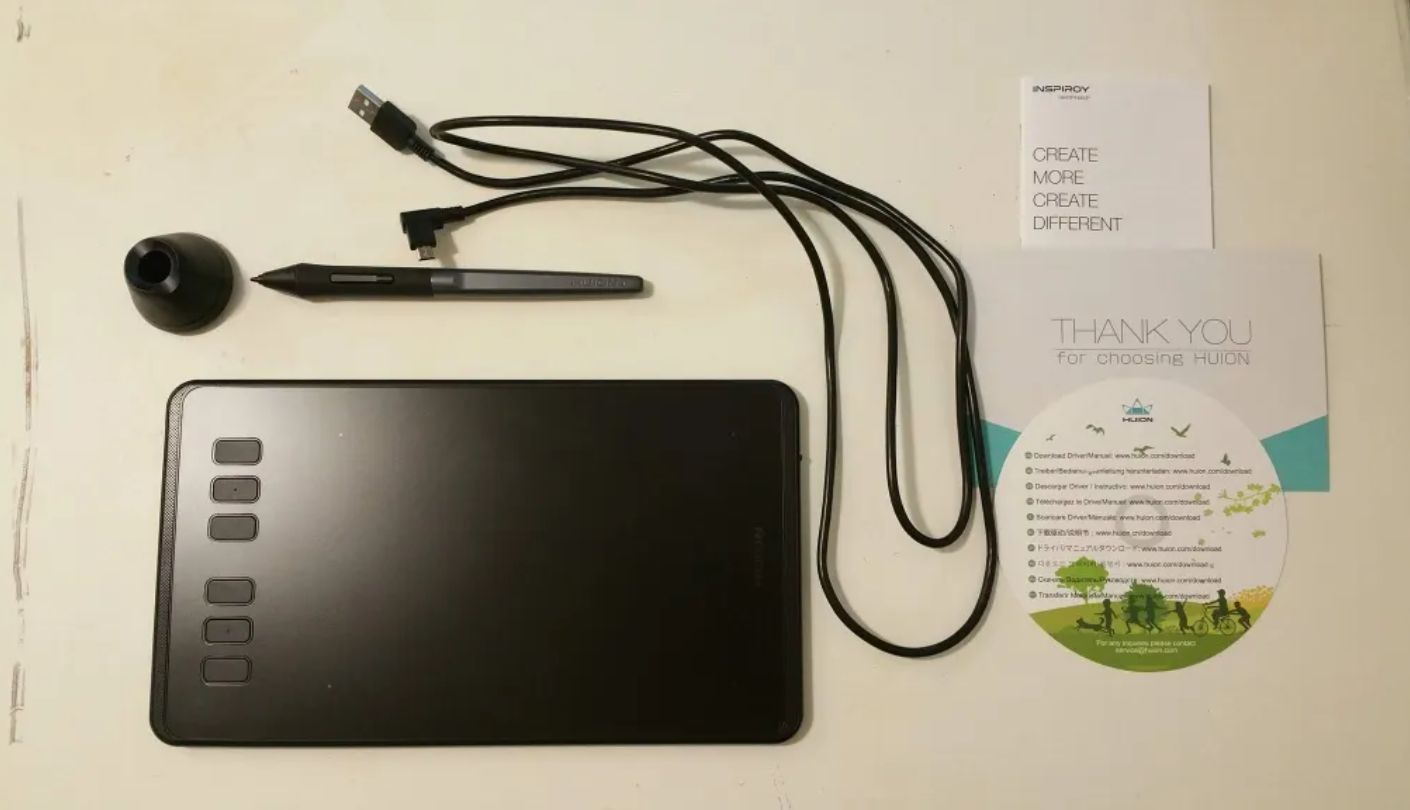
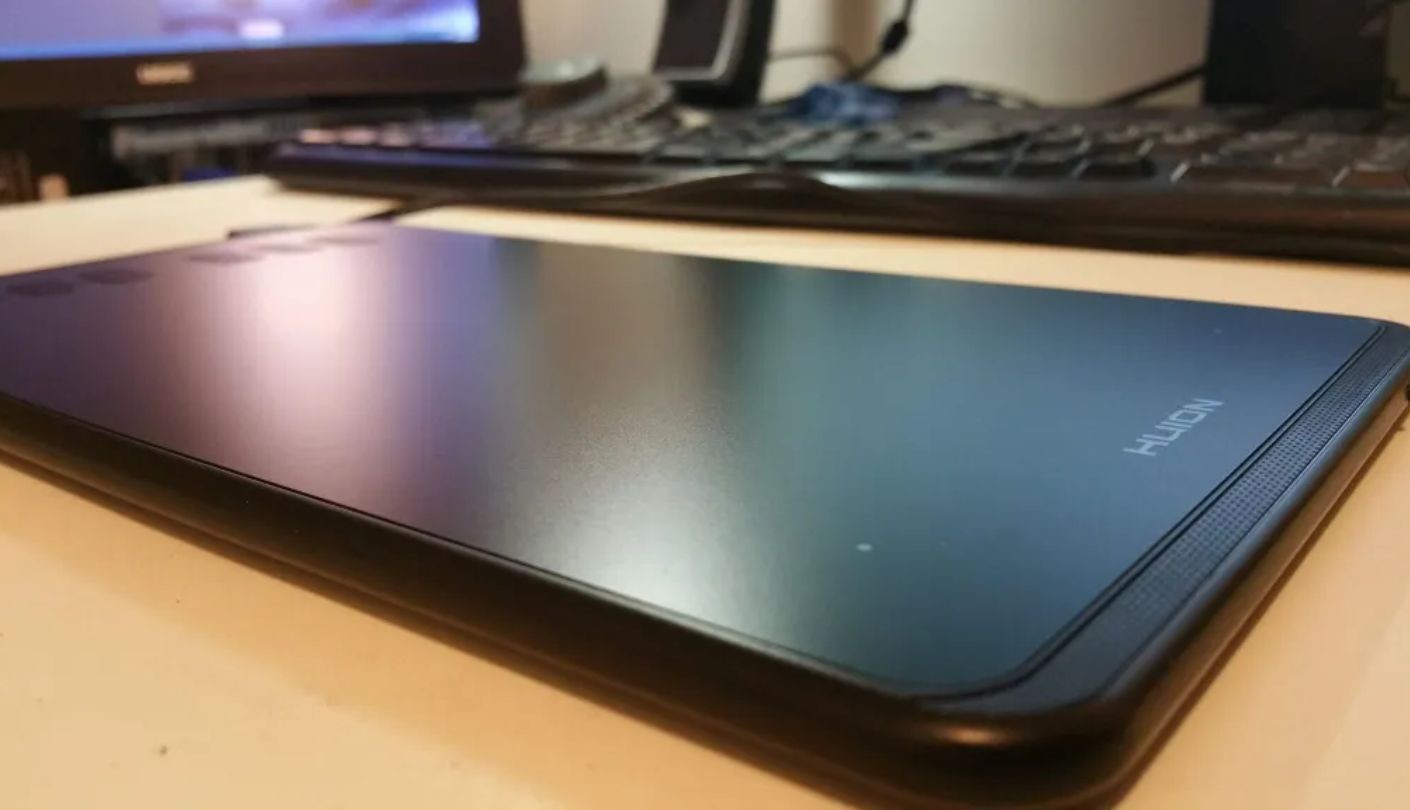
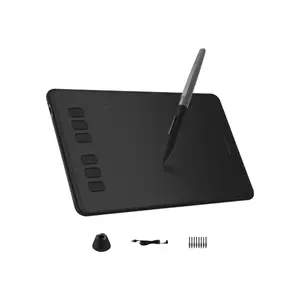
The first time I lent a tablet to my teenage niece, she spent ten minutes undoing work she never meant to undo, all because the heel of her hand kept brushing a shortcut key. HUION built a small switch into the side of the Inspiroy H640P for exactly that problem. Flick it, and all six press keys go dead until you flick it back.
The rest of the tablet is a tidy compact package. The drawing area is 6.3 x 3.9 inches, the body is 8 mm thin, and the whole thing weighs 277 grams. HUION lists 8,192 pressure levels, 5080 LPI resolution, a 233 PPS report rate, ±0.3 mm accuracy and a 10 mm sensing height, all solid figures for a tablet this size. There is no tilt support, which only matters once you start shading with angled brushes.
The battery-free PW100 pen has a silicone grip and buttons shaped to avoid accidental presses, and it ships with a holder that keeps replacement nibs inside. That holder is more useful than it looks. A pen lying loose on a desk rolls off sooner or later, and a nib swap mid-session takes seconds when the spares are right there.
HUION supports Windows 7 and newer, macOS 10.12 and newer, and Android 6.0 or later. On a phone, the tablet switches to a phone mode that narrows the drawing area to 62.5 x 100 mm, matching a tall screen. It worked for quick doodles with a cheap OTG adapter, though the narrow strip feels cramped for anything serious. The tablet connects through Micro USB, an older port that means keeping track of the right cable. On a desktop, the compact 260 x 147.7 mm body fits between a keyboard and a mouse pad without forcing anything else off the desk.
Where the H640P fits best is a shared household or a young artist still learning where to rest a palm. The key lock removes one of the most common early frustrations without any setup at all, and the compact size suits a laptop on a kitchen table. Grown-ups with a big monitor and plans for detailed shading would be happier with one of the ten-inch tablets. For everyone else, it is a tidy, sensible first step that will not take over the table.
Pros:
- Key Lock Switch
- Six Press Keys
- Holder With Spare Nibs
- Android Phone Mode
- 233 PPS Report Rate
Cons:
- Ignores Pen Angle
- Dated Micro USB
Summary: A compact tablet built around one smart fix for accidental key presses. Treat the key lock as the reason to buy and the Android phone mode as a handy extra for doodling away from the desk.
GAOMON S620 Review
Phone Ready
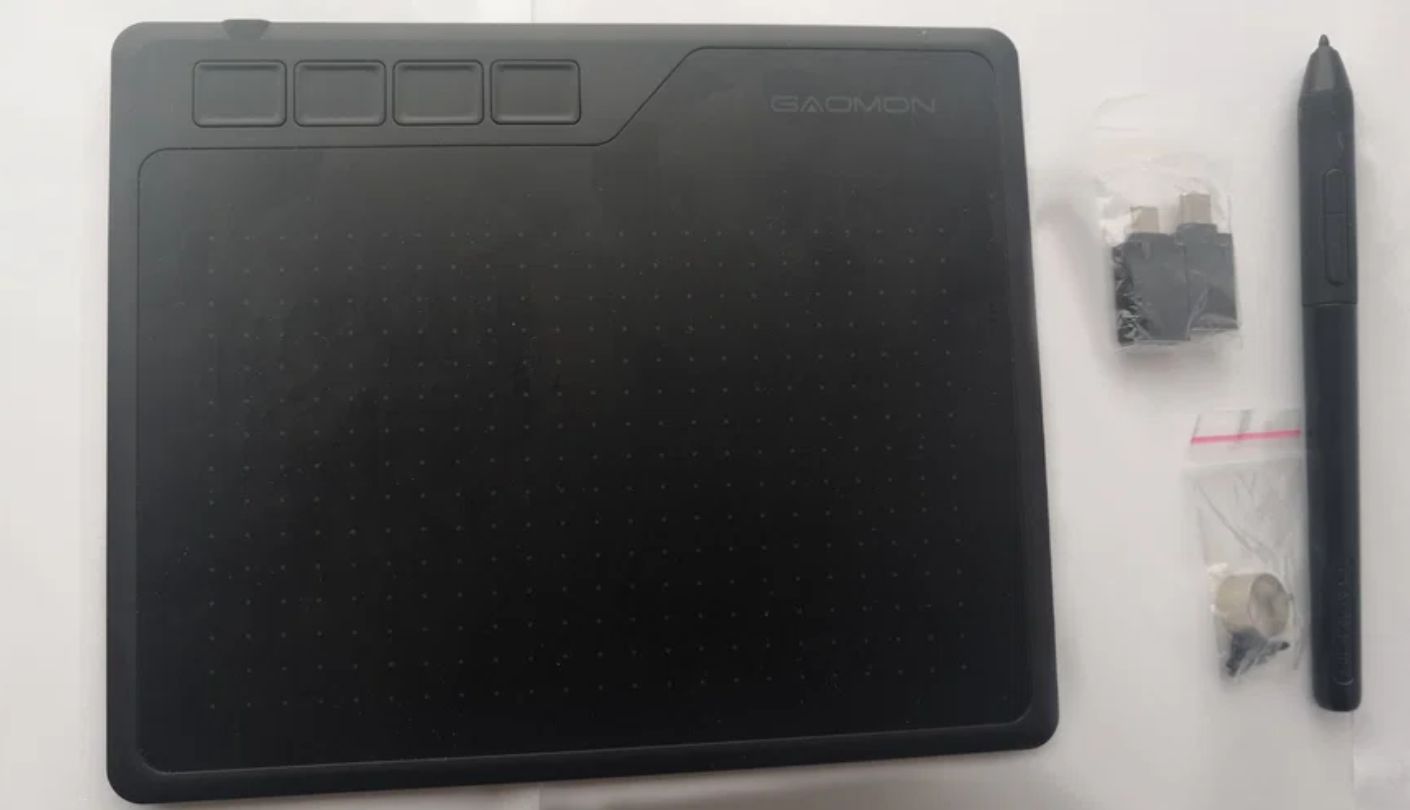
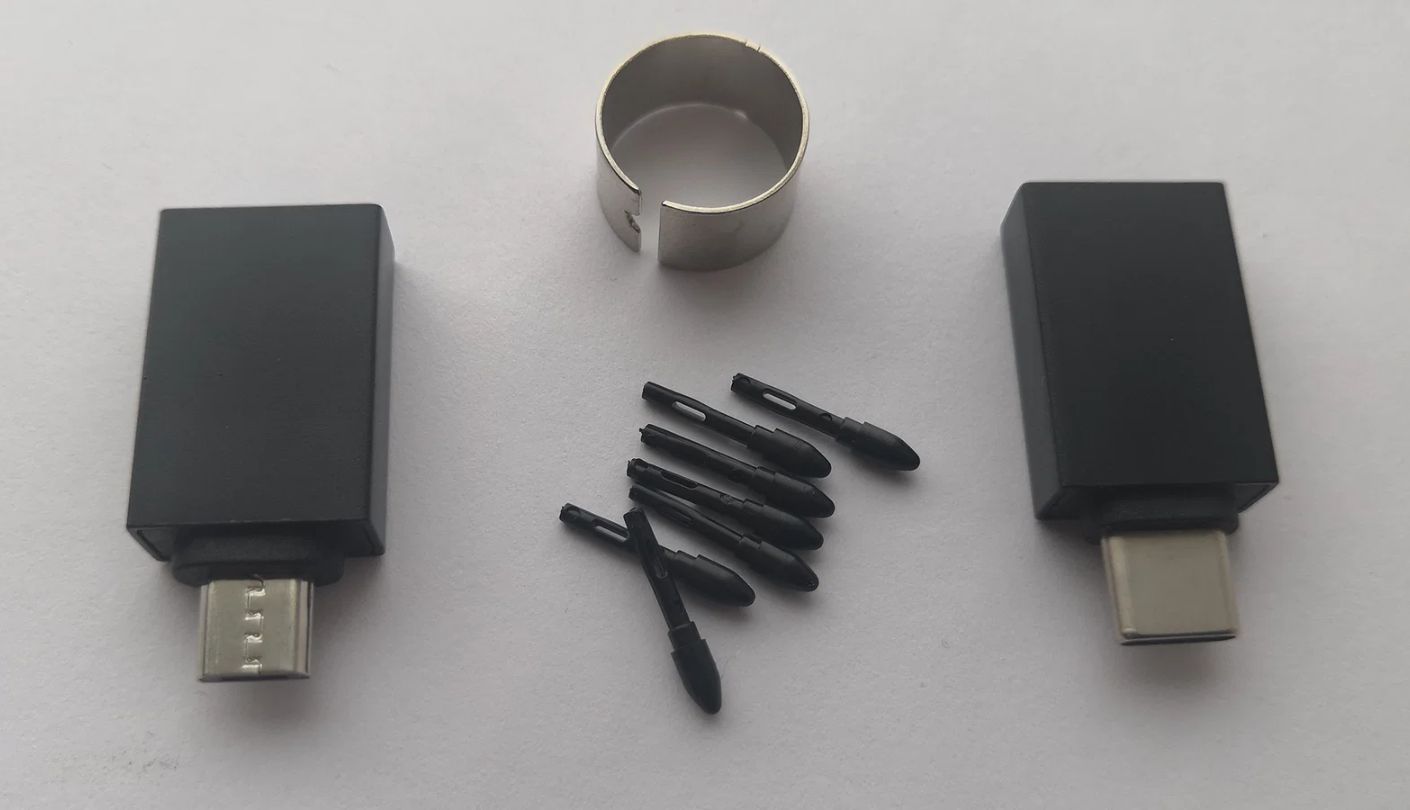
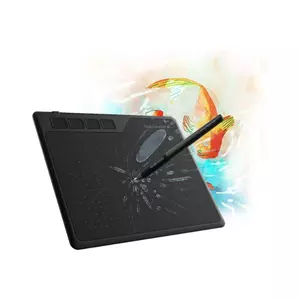
Two OTG adapters ride along in the box of the GAOMON S620, one for USB-C phones and one for Micro USB, and GAOMON rates the tablet for Android 6.0 or later. That makes it the quickest tablet here to try with a phone on day one, before a computer even enters the picture. It also shares the Wacom's sensible habit of lining up all four express keys along the top edge, so either hand reaches them without flipping anything.
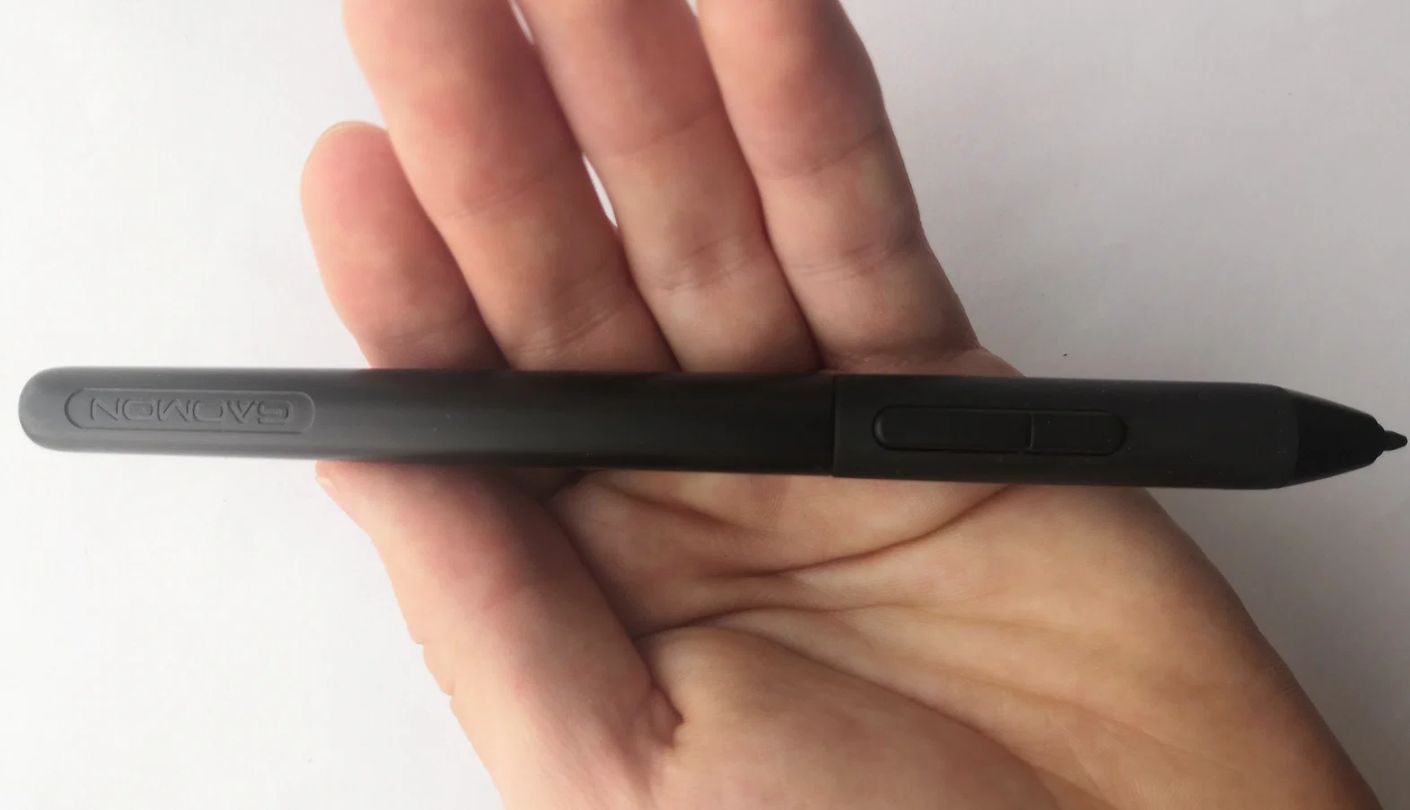
The drawing area measures 6.5 x 4 inches, a touch larger than the Wacom and the HUION. GAOMON lists 8,192 pressure levels, 5080 LPI resolution, a 10 mm reading height and a report rate of 266 PPS, the joint-highest figure among these five. The battery-free AP32 pen carries two programmable buttons, so you get six shortcuts in total between pen and tablet. There is no tilt support.
The pen itself feels very smooth on the surface, almost slippery at first. A couple of buyers wrap the grip with tape for extra friction, and I ended up doing the same after a week. Lines stayed clean and responsive in Krita and Photoshop alike, and my nested circles closed neatly once my hand adjusted to the glide. One thing to know: the AP32 has no eraser on its back end, so erasing goes onto a pen button or a key.
The phone setup has firm limits, and they are worth knowing before you rely on it. The pen buttons and express keys stop working on Android, and the phone has to stay in portrait mode for the drawing area to cover the whole screen. On Windows and macOS everything works as expected through GAOMON's driver, which installs quickly and keeps its settings simple.
Students who sketch on a phone between classes and on a laptop at home get the most from it. The top-edge keys suit either hand, the 6.5 x 4 inch surface gives a little more room than the Wacom, and the slick pen settles in after a few sessions. Keep expectations modest on the phone side, where the S620 works as a pocket sketchpad and little more.
Pros:
- Top-Edge Express Keys
- 266 PPS Report Rate
- 6.5 x 4 Inch Area
- Two OTG Adapters
- Two Pen Buttons
Cons:
- Keys Idle On Phones
- No Eraser End
Summary: A compact tablet that bridges a phone and a computer without extra purchases. Left-handed buyers can shortlist it next to the Wacom, since both keep their keys along the top edge.
UGEE M708 V3 Review
Paper Feel
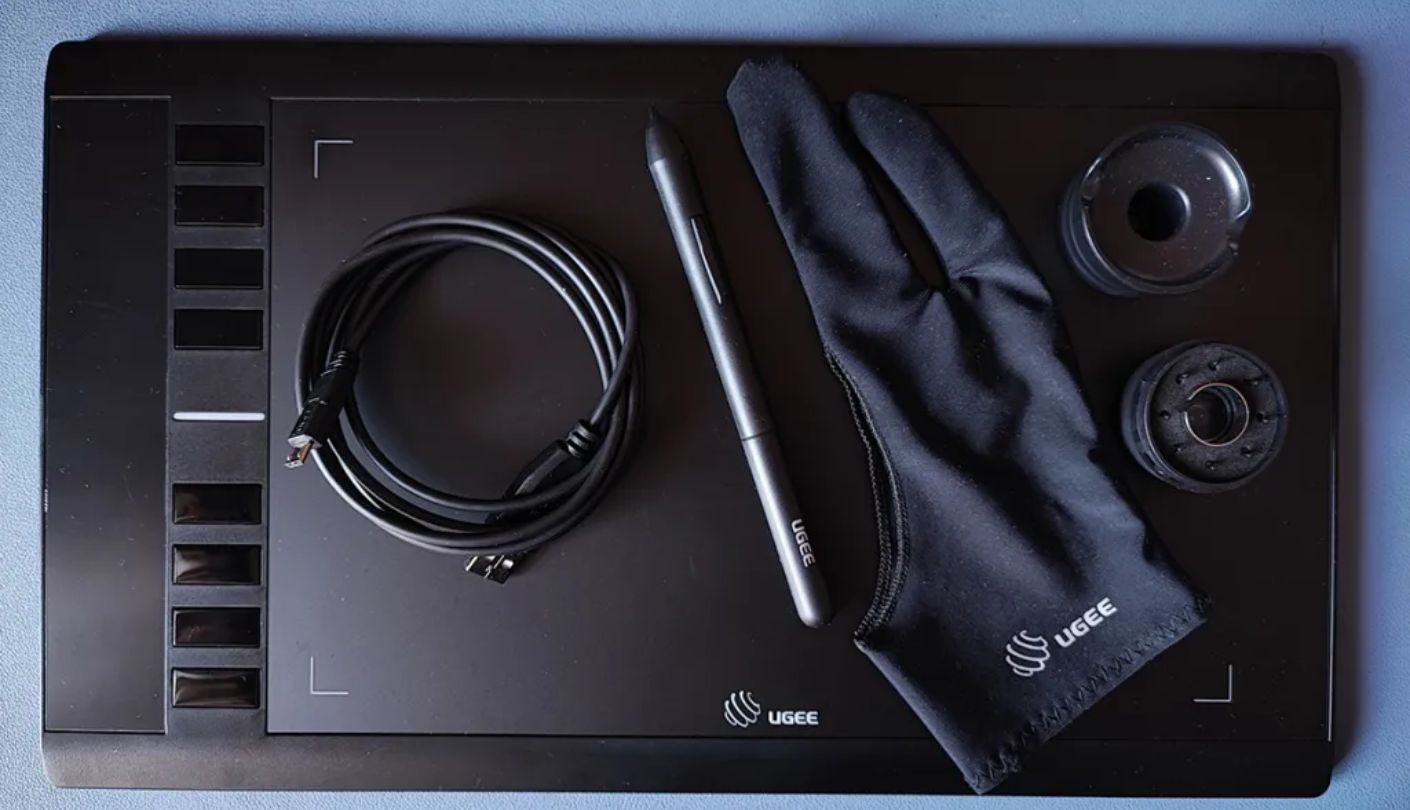
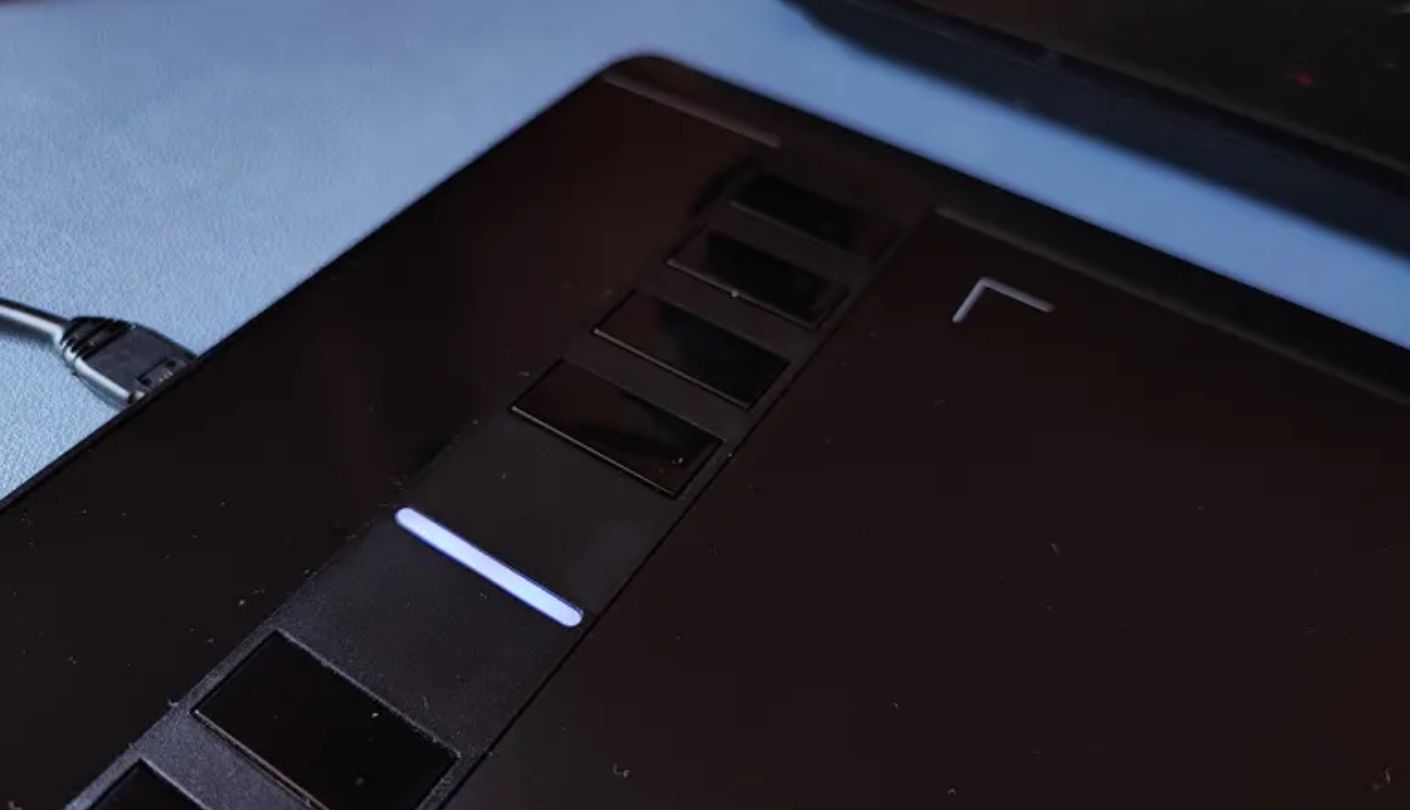
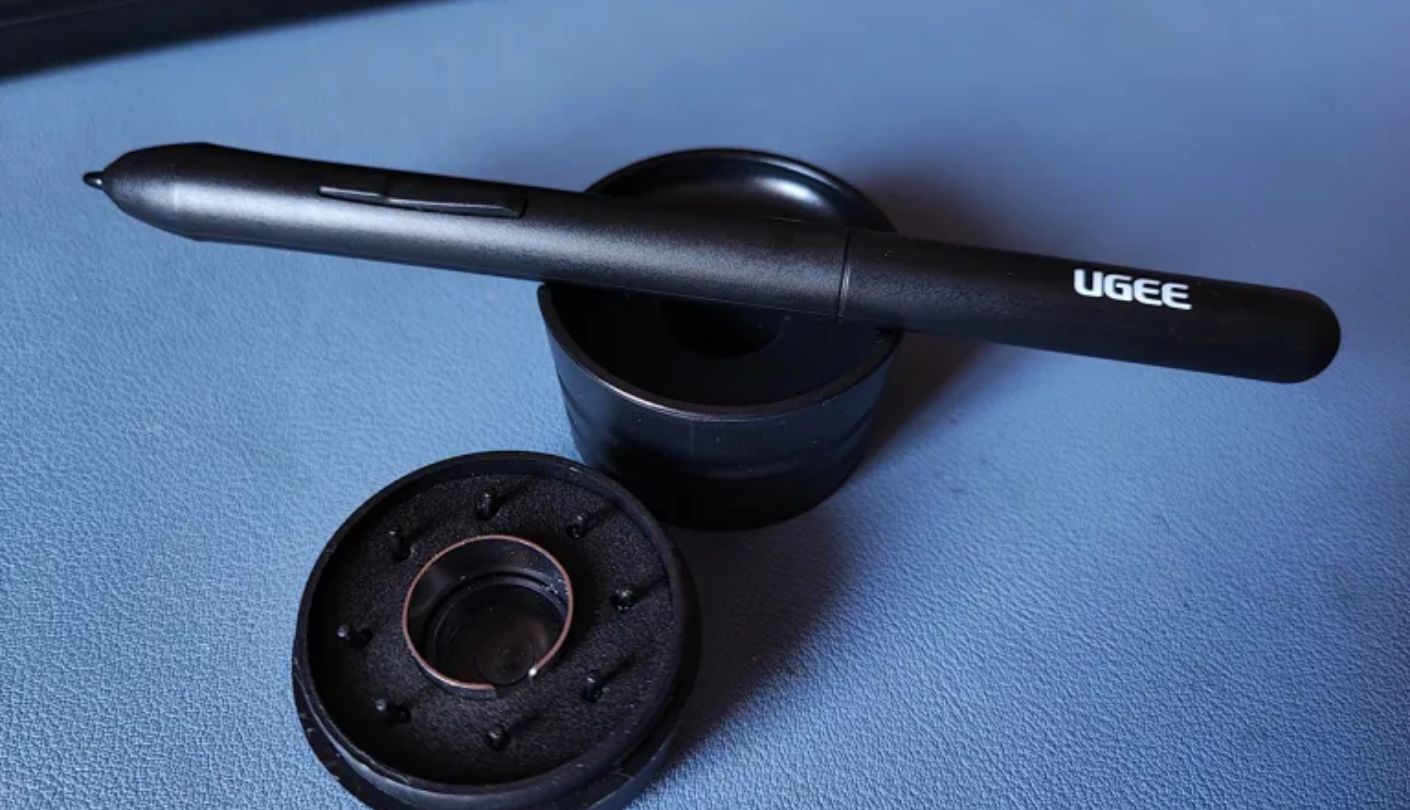
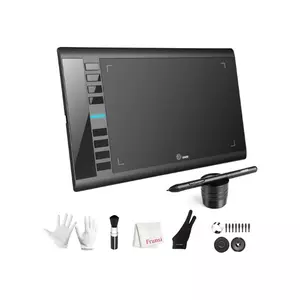
I expected the least from this one. The M708 name has been around for years, and old designs at low prices usually feel their age. Then the UGEE M708 V3 came out of its box with a ten-inch surface that drags against the nib like paper and, according to UGEE's spec sheet, reads pen tilt up to 60 degrees.
The drawing area is 10 x 6 inches, almost as large as the XPPen's. UGEE lists 8,192 pressure levels, 5080 LPI resolution, a 266 RPS maximum report rate and a 10 mm reading height. UGEE describes the surface as having a papery texture, and that texture explains the Paper Feel label. The pen meets a slight, even resistance that makes slow sketch lines easier to control than on a slick plastic finish. Eight shortcut keys sit down one side.
The box is generous too. Alongside the tablet and battery-free stylus, UGEE includes a pen stand, eight replacement nibs and a drawing glove, the same kind of starter kit XPPen packs with the Deco 01 V3. That textured surface wears nibs down faster than a smooth one, so the supply of spares makes sense, and the glove keeps a palm from dragging across the drawing area during long sessions.
Two compatibility details need attention. UGEE's spec page lists macOS support from version 10.10 through 13, so owners of newer Macs should check the driver page before buying. Android does not appear in UGEE's official compatibility list at all. Windows 7 and newer, ChromeOS 88 or later and Linux are covered, with a note that detachable and foldable Chromebooks may not map correctly. For a Windows or Linux desktop, none of that gets in the way, and UGEE keeps its driver downloads on its own support site.
Size is the last thing to weigh. The tablet measures 359 x 210 mm, about 14.1 by 8.3 inches, the biggest footprint here by a clear margin, and it needs real estate beside the keyboard. On a roomy Windows desk with a large monitor, though, it offers a lot of drawing for the money, and nothing else to buy before the first sketch.
Pros:
- Glove And Pen Stand
- Eight Replacement Nibs
- Tilt Up To 60 Degrees
- Papery Textured Surface
- Linux Driver Support
Cons:
- Largest Desk Footprint
- Skips Android Support
Summary: Best suited to someone who sketches slowly and wants a paper-like drag under the nib. The spare nibs in the box cover the faster wear that texture brings, so the first months need no extra shopping.
First-Tablet Questions People Ask Me Most
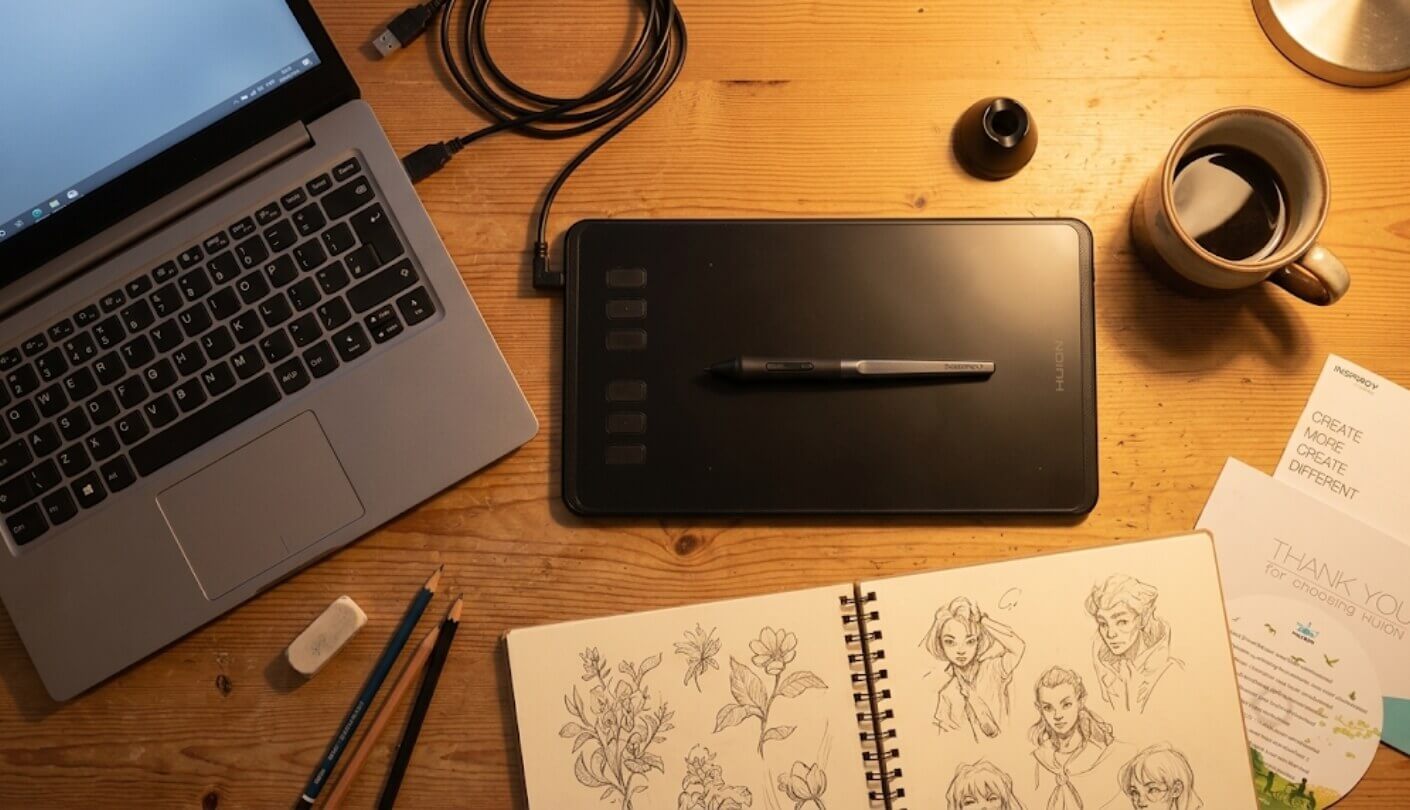
Do I need a tablet with a screen to learn digital art?
No. Screenless tablets like these five are how a huge number of professional illustrators learned, and they cost far less than pen displays. The odd feeling of looking at the monitor while drawing on the desk fades with practice, usually over days to a few weeks of regular sessions. Short, frequent practice beats one long weekend marathon. Tracing over photos on a separate layer is a quick way to train the hand-eye link without worrying about drawing skill at the same time.
Is 16,384 pressure levels better than 4,096?
On paper, yes. In your hand, the difference is small for a beginner. Once a pen reports a few thousand levels, smooth pressure curves depend far more on the drawing app's settings and your own control. Adjusting the pressure curve in the driver changes the feel more than doubling the figure on the packaging. The Wacom's 4,096 levels never held back any of my sketches.
Does tilt matter when I am just starting out?
It matters if you love pencil-style shading, since tilt lets brushes widen as the pen leans. For inking, comics and flat color work, you can ignore it. The XPPen Deco 01 V3 and the UGEE M708 V3 support it here, and both list 60 degrees. If you are unsure about your style yet, tilt is a nice bonus to have later.
Should I choose a small or a large drawing area?
Follow your screen and your desk. A small tablet around six inches wide pairs well with a laptop and a tight workspace, and it travels easily. A ten-inch tablet suits a large monitor and full-arm strokes, though it needs more desk room. You can always shrink the active area in the driver, but a small tablet cannot grow. If you plan to keep the tablet for years and have the desk space, the larger size is the safer long-term bet.
Can I draw with these on a phone or a Chromebook?
Some of them. The Wacom is certified for Chromebooks and runs on Android 6.0 or later, although its keys do not work on ChromeOS. The XPPen supports ChromeOS 88 and Android 10 or later. The HUION and GAOMON support Android 6.0 or later. The UGEE lists ChromeOS 88 and later, with no Android support. Phone drawing works best for quick sketches.
Which free drawing apps should a beginner try first?
Krita is the usual starting point for painting and sketching, and it runs on Windows, macOS and Linux. GIMP covers photo editing with pen pressure support. Both are free and open source. Learn one app properly before chasing another, since tool switching slows early progress more than any hardware limit. Some tablet brands also run free software offers with registration, so check the listing for anything bundled with your model.
How often do pen nibs need replacing?
That varies with how hard you press and how textured the surface is. Swap the nib once it looks flat or feels scratchy, before it starts scuffing the drawing area. The Wacom keeps spares inside the pen, the HUION holder stores spares, and the XPPen and the UGEE each ship with eight in the box. Light pressure makes nibs last noticeably longer.
Why does my line lag or wobble?
Leftover drivers from an old tablet cause most of it, so uninstall every tablet driver, restart, and install only the current one. On Windows, toggle the Windows Ink option in the driver and test again in your drawing app. Diagonal wobble on slow strokes is often normal sensor jitter, and the stabilizer setting in Krita or Photoshop smooths it out.
Your First Tablet Only Has One Job
A first drawing tablet does not need to be the best tablet you ever own. It needs to get out of the way long enough for your hand and eye to start talking to each other. Every model here clears that bar, and the gaps between them shrink with every week of practice.
If I had to choose blind for a stranger, I would hand over the XPPen and let its tilt and size carry them through the first year. If the stranger happened to own a Chromebook or wanted the least fuss possible, the Wacom would go in the bag instead. Either way, the best investment after the tablet itself is an evening routine and a spare nib in the drawer.

Meet James, our go-to tech guru and seasoned reviewer. His sharp attention to detail and love for gadgets drive his deep dives into the newest tech waves. James's insightful analysis and real zest for breakthroughs have earned him a solid reputation in the tech world.


